Actions Widgets
Actions widgets put your schedule, next action, and lists right on your home screen—and you can style them to match. Here’s how to make your home screen both useful and as aesthetic as you like.
If you’ve updated to iOS 14 or later, you can add Actions widgets straight to your home screen — and with iOS 16+, to your Lock Screen too. Pick the sizes that fit your layout, stack a few of the same widget with different configs, and match colours to your app theme or set them per widget.
Getting started
- Make sure your device is on the latest iOS/iPadOS. Apple’s update guide is here.
- To add widgets: tap and hold an empty spot until icons jiggle, tap the + button, then choose Actions (or Timepage, depending on your app). Full steps are here.
Schedule widget
Schedule widgets put today’s — and optionally tomorrow’s — actions front and centre. You can show add buttons for creating new actions, and on the large size, shortcuts to your lists. Turn on Show Tomorrow to include tomorrow’s actions; on small, with tomorrow enabled, the widget shows only tomorrow to keep things readable. Toggle Show Lists in settings for the large size. In all sizes, you can choose whether the Add button is always visible or only When possible. Theme is customisable.
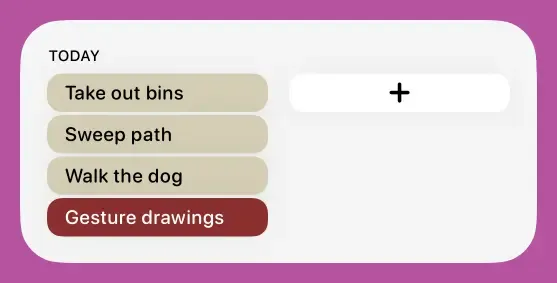
- Small: Compact view of today (or tomorrow only when Show Tomorrow is on). Optional Add buttons.
- Medium: Today and tomorrow in columns with day headers. Optional Add buttons.
- Large: Full schedule with today and tomorrow in a two-column layout, optional Lists on the right. Add buttons let you create actions for a specific day.
List widget
The List widget shows actions from chosen lists or from search. Use it to keep a list — or a filtered set of results — visible without opening the app. Actions appear in columns. You can show or hide list titles to free up space, add Add buttons (always on or when possible), and tweak the theme. In settings, switch between List (specific lists) and Search (actions matching a search term).
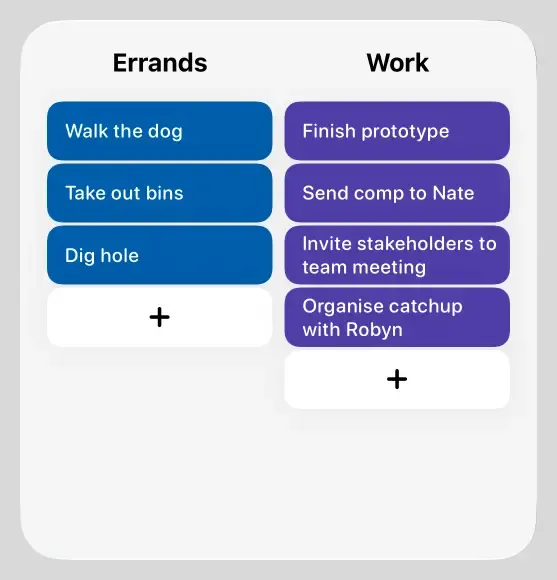
- Small: Single list or search result set.
- Medium: More actions with list/source context.
- Large: More space for actions and list titles.
- Extra large: Full list view with maximum capacity.
Next Action widget
Stay focused by surfacing the very next action you need to do. Choose whether the next action comes from your schedule or a specific list. You’ll see the action title, list name, priority, and subtask progress. Tap to complete or open the action. Use multiple instances side by side to track the next action for different lists.
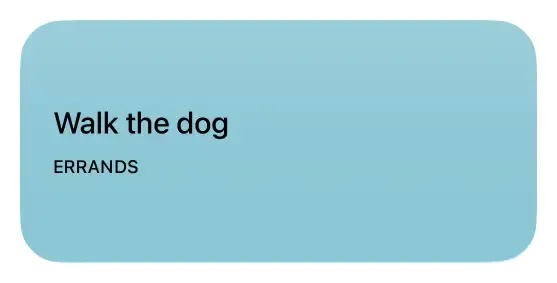
- Small: Next action with title, list name, priority, subtask progress.
- Medium: Same with more space for details.
- Accessory rectangular / inline: Lock Screen widget with next action: title, optional list name, subtask progress. Tap to open in the app. iOS 16+
Quick Add widget
The fastest way to create an action. No need to open the app first. Circular buttons jump straight to the create-action screen. Pick logo or plus icon style and customise the theme.
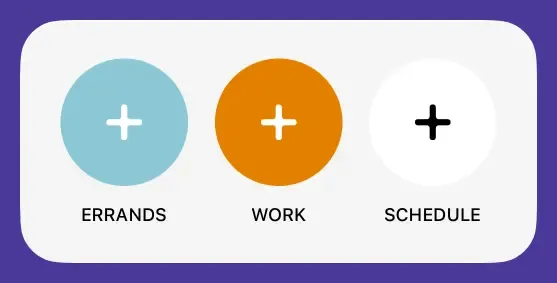
- Small: Single button for one list or schedule.
- Medium: Up to three lists, each with its own button.
- Accessory circular / rectangular / inline: Lock Screen widget with icon and list name; tap to create an action for that list. iOS 16+
Control Center widgets — iOS 18+
iOS 18 adds interactive Control Center widgets that live in Control Center rather than on the Home or Lock Screen.
- Quick Add Button: A single button to create a new action. Set a specific list or use the schedule as the default. Tapping opens the app to the action creation screen.
- Open Actions Button: Opens Actions to a chosen view: schedule, logbook, search, or a specific list. Configure the mode and, when relevant, the list, then tap to jump straight there.